Keys, and knowing which machine answered.
Your key, on the phone
Section titled “Your key, on the phone”Under Settings → SSH Keys you can generate a key on the device or import one you already have. Generation happens locally; nothing is uploaded, because there is nowhere to upload it to.
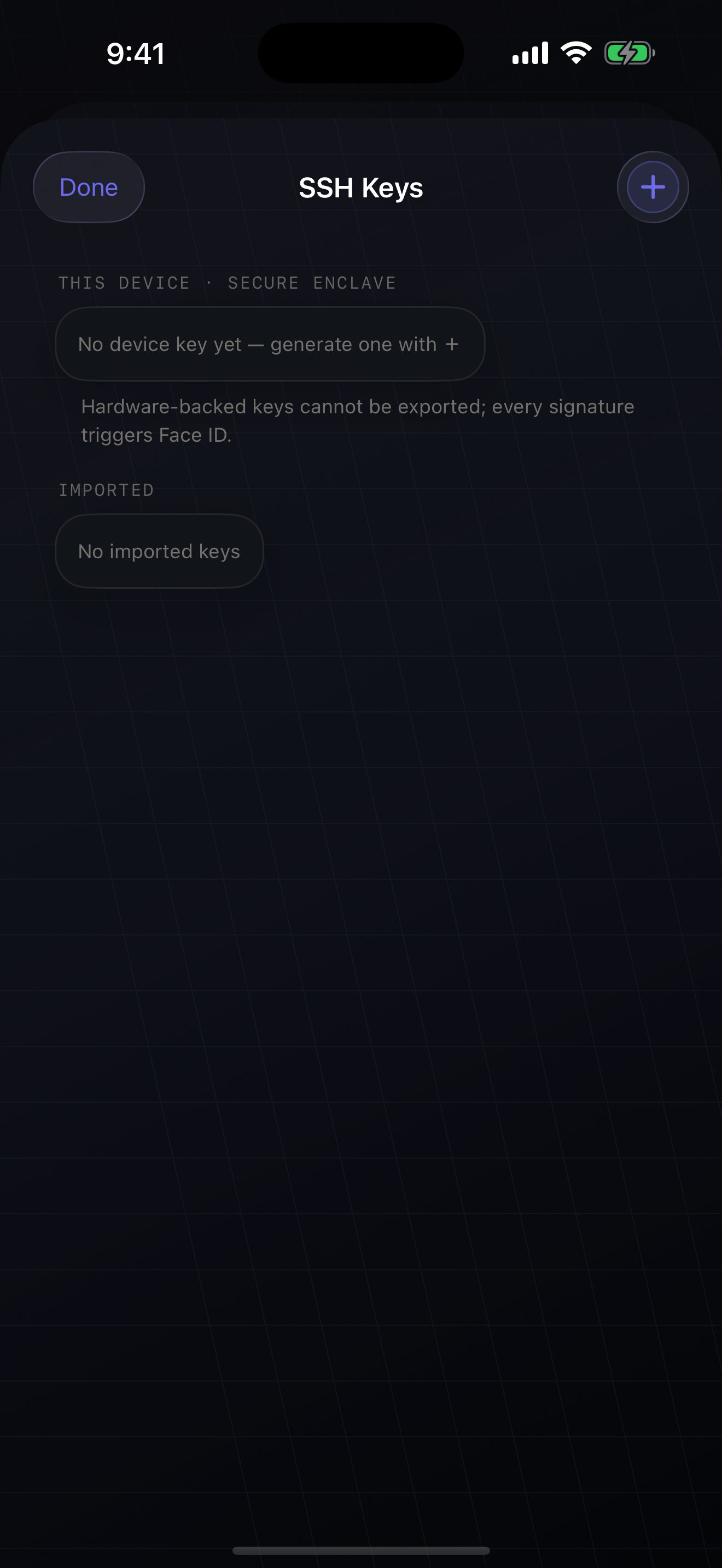
To use a generated key, copy its public half and append it to ~/.ssh/authorized_keys on the host, the same as any other key.
Where secrets live
Section titled “Where secrets live”- Private keys and passwords are held in the iOS Keychain, protected by the Secure Enclave where the device has one.
- Face ID can be required before a key is released for use — turn it on when importing or generating.
- Connection details (host, port, username) are ordinary app data. There is no sync: a new phone means adding your hosts again, which is the trade for having no account.
The other direction: is that really your server?
Section titled “The other direction: is that really your server?”The first time Moshpit connects to a host it shows a New Host sheet with the key fingerprint and a command to check it against the server itself:
Run that on the machine (from a console you already trust) and compare. Matching means you are talking to the machine you meant. This is the moment that stops a machine-in-the-middle, and it is the only moment — after you tap Trust, that key is pinned for that host.
When a key changes
Section titled “When a key changes”If a host later presents a different key, Moshpit stops and says so rather than connecting. Usually that means the server was rebuilt or reinstalled and the fingerprint genuinely changed; occasionally it means something is wrong. Verify out of band before you accept it — an app that quietly accepts a changed host key has thrown away the only protection this check provides.
Passwords
Section titled “Passwords”Password auth works and is stored in the Keychain like a key. It is the weaker option: prefer a key, and if you must use a password, do not expose SSH directly to the internet — see Reach your machine from anywhere.