 moshpit
Keyboard, themes and shortcuts
The shortcut bar
Section titled “The shortcut bar”Part one. Twelve slots, twenty-two built-in keys, and an editor that reorders them by drag. Plus custom keys of your own.
Keyboards
Section titled “Keyboards”Part two. What a Bluetooth keyboard covers, what it does not, and why Pinyin and Japanese input needed a fix.
How it looks
Section titled “How it looks”Part three. Eight terminal themes and a colour editor, ten fonts, eight app icons, and an accent you set yourself.
Moshpit draws its own strip and switches off the system input accessory view, so what you see there is the app’s, not the keyboard’s. It holds up to twelve keys and it ships with six.
Settings → Keyboard · Keys → Shortcuts
Six keys out of the box, sixteen more waiting
Section titled “Six keys out of the box, sixteen more waiting”A fresh install puts esc, tab, ^C, ^L, paste and the arrow D-pad in the bar, in that order. The other sixteen built-ins sit in the editor’s AVAILABLE list until you add them. Three chips carry a glyph on the bar instead of their label — paste a clipboard, the D-pad a four-way arrow, scroll an up/down arrow; the names paste, ✛ and ⇅ are what the editor list shows.
- Pan the row sideways to reach keys past the screen edge
- The keyboard show/hide button sits outside the pan area, always in reach
- The Settings row shows your slot count —
6/12,9/12
Editing the bar
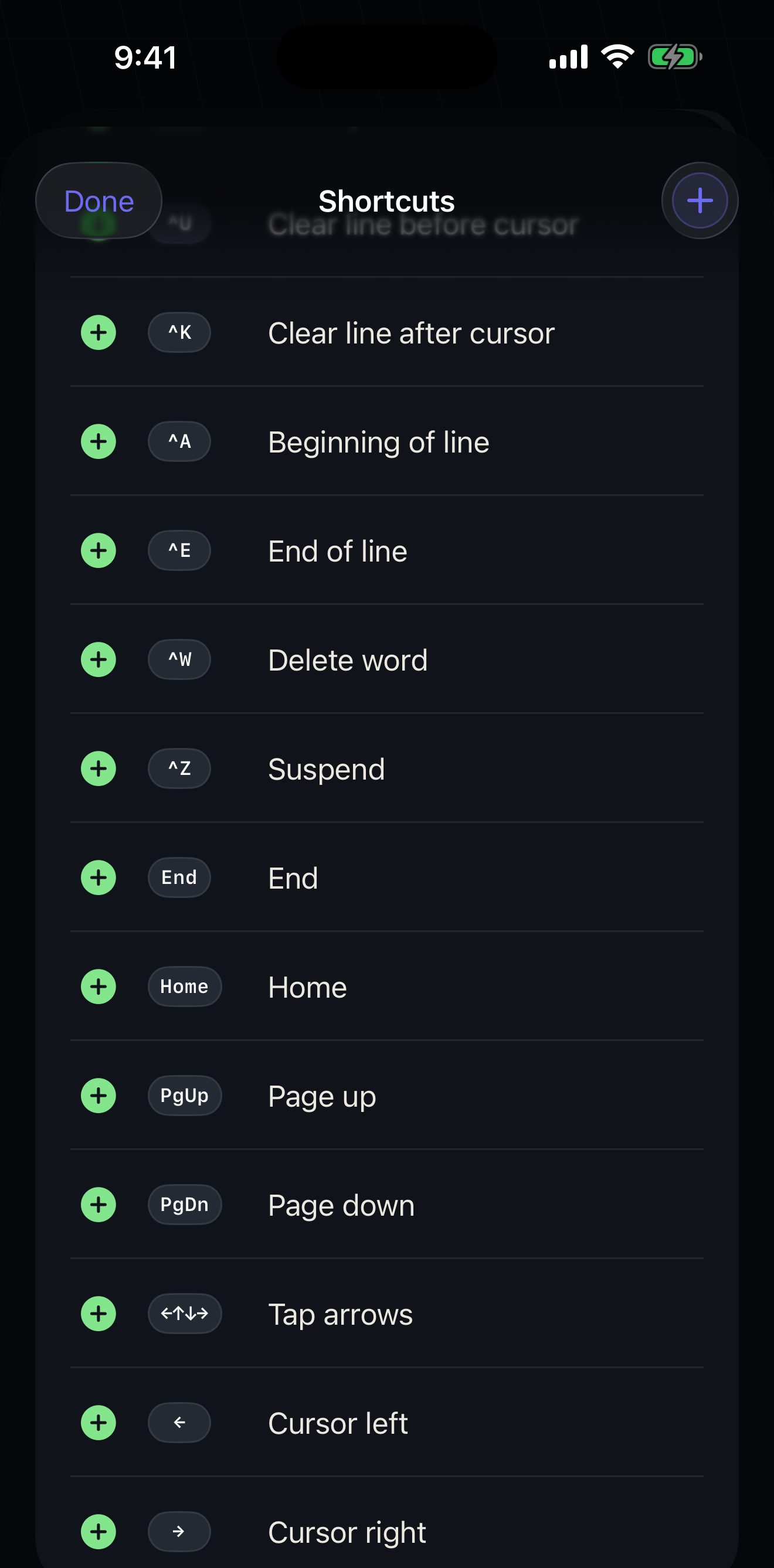
Section titled “Editing the bar”The editor has four groups. PREVIEW renders the bar as it will look. IN TOOLBAR · n/12 is the bar itself — drag the ≡ handle to reorder, tap the red − to take a key out. CUSTOM holds keys you made. AVAILABLE holds every built-in currently out of the bar, each with a green + to put it back.
- Removing a built-in never deletes it — it drops back to AVAILABLE. You cannot lose a built-in key. A custom key is not the same: the red
−in the CUSTOM group deletes it outright, with no undo. - Reordering applies to the bar. AVAILABLE is not reorderable — it follows the stored order, which a bar reorder can shuffle.
- When an update adds a new built-in and your bar is already full, the new key lands in AVAILABLE rather than silently vanishing.
The sixteen keys that start outside the bar
Section titled “The sixteen keys that start outside the bar”Two of these exist specifically for coding agents: ⌃End jumps a long Claude Code transcript to the live end, and ⇧Tab is its mode toggle. Neither is typeable on a software keyboard — there is no End key, and Shift-Tab needs a hardware Tab.
| Key | What it does |
|---|---|
| ctrl | Control — sticky, one-shot |
| ⇅ | Scroll history |
| ⌃End | Jump to end |
| ⇧Tab | Back-tab / toggle mode |
| ^D | End of file |
| ^R | Reverse search |
| ^A | Beginning of line |
| ^E | End of line |
| ^W | Delete word |
| ^Z | Suspend |
| ↑ / ↓ | History previous / next |
| Home / End | Home, End |
| PgUp / PgDn | Page up, page down |
Three chips that are not taps
Section titled “Three chips that are not taps”Drag, don’t tap
Section titled “Drag, don’t tap”✛ D-pad. A joystick with a dead zone and a dominant axis: press it, then push — it fires once when you enter a direction and repeats while you hold. Plain arrows go out through the D-pad’s own encoder, so application-cursor-key mode is respected and shell history search keeps working. The brief press before it engages is deliberate: the bar sits close enough to the home indicator that a swipe-up-to-background can begin on this chip, and a stick that fired on any moving touch would send that swipe’s direction to the remote as a real arrow key.
Three lines a step
Section titled “Three lines a step”⇅ Scroll. Drag it up for older lines, down for newer, three lines a step, hold to keep going. It lives on the bar rather than the terminal surface so it cannot collide with tap-to-focus or long-press-to-select. Where those lines come from depends on the session — see below.
Arms, then clears
Section titled “Arms, then clears”ctrl Sticky. Tap it, then type a letter: that letter goes out as its control code and the chip disarms itself. Tapping any other bar control — esc, tab, paste, the D-pad — also disarms it, so it never folds into a key you did not mean.
What ⇅ actually scrolls
Section titled “What ⇅ actually scrolls”Only a plain shell keeps its history on the phone. Everywhere else it lives on the server, so the thumb asks the server to move. That is the right answer — it is also why “scroll” is not a purely local control, and it is worth knowing which one you are using.
- Plain SSH, or a bare shell over mosh — pages Moshpit’s own buffer and nothing goes out. If the program in front of you has grabbed the mouse, it gets a synthesized wheel event instead.
- SSH + tmux — a mouse-grabbing program (Claude Code, vim) gets a wheel event through the control-mode connection. A shell pages a local copy of the pane’s history, seeded at attach, and new output is held while you read — tmux copy-mode is never entered (see Scrolling).
- mosh + tmux — a mouse app gets the wheel over mosh; a shell gets tmux copy-mode keystrokes, because the mosh-rendered screen is the only view that copy-mode repaints. Paging is throttled so a held thumb cannot rip through history.
- herdr — sends a
terminal.scrollmessage and the server decides wheel versus scrollback. herdr has no local scrollback at all: its frames are absolute repaints rather than an appended byte stream, so there is nothing on the phone to page back through and every step is a round trip.
Tap + in the top right of the Shortcuts editor. The Add Shortcut sheet is one screen, top to bottom, with a live preview of the chip and a SLOT n/12 readout so you know what you are spending.
- TYPE — Key Combo sends modifiers plus a key. Text types a string as-is. Command submits one command with Return.
- QUICK KEYS — 41 presets in five groups: PREFIX, CONTROL, SPECIAL, NAVIGATION and F-KEYS (F1–F12). Tap one to fill the trigger, then adjust the label. The first PREFIX entry is the multiplexer prefix,
C-b— the default for tmux and herdr alike. - TRIGGER — four modifier toggles,
⌃ ⌥ ⇧ ⌘, and a main key. On a phone⌘maps to Control semantics in the PTY. - ACTION — the payload.
\r,\n,\tand\eare interpreted, so you can type an escape sequence directly. Append Return adds⏎to submit. - DISPLAY — the chip label is capped at six characters; the description is what you will see in the editor list.
- SCOPE — leave it empty and the key is everywhere. Bind it to hosts and it only appears on those connections, which is how you get more than twelve keys in practice.
A payload beats the trigger. On a Key Combo, anything in ACTION is sent as written and the modifiers and main key above it are ignored. Several quick keys — S-Tab, Del, BSpace, Home, End, PgUp, PgDn and every F-key — fill the payload rather than the trigger, so editing the trigger afterwards changes nothing until you clear ACTION.
Two things in that sheet that do less than they look like
Section titled “Two things in that sheet that do less than they look like”Both are real in the app today, and worth knowing before you plan around them.
- The Color swatch is stored but not drawn. Every chip in the bar renders as the same dark-grey pill, built-in or custom. Your choice is saved and will survive, but there is no colour-coding on the bar right now.
- “Repeat on hold” is not a per-key switch. Every Key Combo chip repeats while you hold it, whether or not the toggle is on. The subtitle promises 30 a second after a 0.4s hold; the bar starts repeating at about 0.3s and fires roughly 14 a second. Treat it as: hold a key, it repeats.
Only in a multiplexer
Section titled “Only in a multiplexer”The SCOPE group also carries a toggle labelled Only in a multiplexer — “show only while the session runs tmux or herdr”. This is the right place for a key that sends a prefix chord and would be noise on a plain SSH shell.
It used to check for tmux specifically, which meant a herdr session counted as “not in a multiplexer” and silently dropped the chip on the one connection you wanted it on. That is fixed. The stored field keeps its old name so saved shortcuts still load; only the meaning changed.
What “in a multiplexer” means, exactly: the app holds a live control plane for tmux or herdr on that connection — not “the word tmux is on screen”. Over mosh that control plane is a second, lightweight SSH connection, because mosh carries a rendered screen and cannot carry tmux -CC or herdr’s frame protocol. If the host will not give Moshpit that side connection, the session can be visibly running a multiplexer and the chip will still stay hidden.
Prefix keys are not the same on tmux and herdr
Section titled “Prefix keys are not the same on tmux and herdr”Both default to ⌃ b as the prefix, which is why the PREFIX quick key is correct on either. What the prefix is bound to is where they part company — and Moshpit prints the right bindings per connection in its own sheets for that reason.
| You want | tmux | herdr |
|---|---|---|
| List sessions / workspaces | ⌃ b s | ⌃ b w |
| Switch windows / tabs | ⌃ b then 1–9 | ⌃ b n / ⌃ b p — steps, no jump by number |
| Panes | ⌃ b q lists them | ⌃ b v splits; there is no “show me the panes” key |
⌃ b q is the one to remember: it lists panes in tmux and detaches in herdr. The nouns differ too — tmux says Session and Window, herdr says Workspace and Tab.
Two different problems. One is handled by the terminal engine and works the moment you pair a keyboard; the other needed a deliberate fix, and a deliberate decision about what not to enable.
What a Bluetooth keyboard gives you
Section titled “What a Bluetooth keyboard gives you”Physical key events go straight to the terminal, so the keys a terminal needs are already there:
- Arrow keys, aware of application-cursor mode;
⌥←/⌥→send emacs word motion,⌃←/⌃→send control-left/right - Escape, Tab and Shift-Tab (back-tab), forward delete
- Home and End; Page Up and Page Down, which scroll the view when the remote is not in application-cursor mode
- Control chords, and Option as Meta — toggled at runtime with
⌥⌘O - Function keys up to F11. Key repeat starts after 0.4s and then repeats every 0.1s.
The limit, stated plainly: there is no hardware-keyboard remapping in Moshpit. No app-level ⌘ shortcuts, no key-binding screen, and F12 and above are ignored. The Shortcuts editor configures the on-screen bar only. If you need a key a hardware keyboard cannot produce, put it on the bar.
Pinyin, Japanese, and the candidate bar
Section titled “Pinyin, Japanese, and the candidate bar”Terminal views normally turn off autocorrect, spell-checking and smart quotes, which is correct for a shell. On a real device that also collapses the keyboard’s prediction strip — which is exactly where a Pinyin or Japanese keyboard draws its candidate list. The result was no candidate bar at all.
Moshpit re-enables spell-checking on its terminals for that one reason. Autocorrect stays off, so the shell never rewrites a command — ls will not become last. Autocapitalisation and smart quotes and dashes stay off too, so 'foo' and --flag arrive as you typed them.
The terminal’s frame is frozen while the keyboard appears, disappears or changes height, including when you switch between a Chinese and an English keyboard. Reflowing mid-transition garbles the screen.
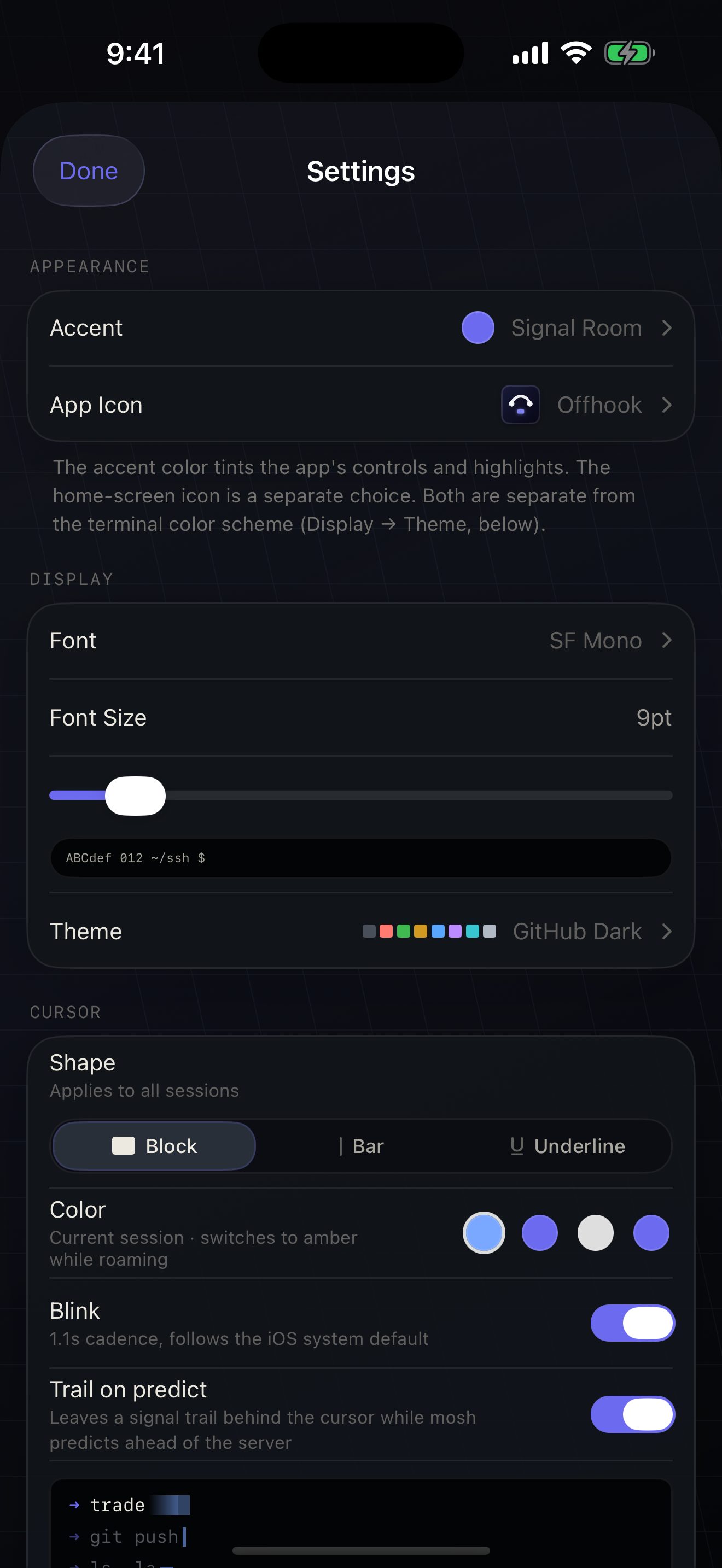
Settings → DISPLAY → Theme. Every row previews the actual palette — a miniature terminal plus the eight base ANSI swatches — because a list of theme names cannot answer the only question you are asking.
Settings → Display
Pick one, or start from one
Section titled “Pick one, or start from one”Long-press a built-in theme for Duplicate & Edit. Long-press one of your own for Edit, Duplicate, Copy JSON or Delete. The + menu offers New Theme and Import JSON….
- Built-ins are read-only — duplicating is the only way in
- Deleting the theme you are using moves you back to the default
- All eight built-ins are dark. There is no light terminal theme.
| Theme | Background | |
|---|---|---|
| GitHub Dark | #050507 |
The default |
| Liquid Glass | #0E1019 |
Deep-glass palette |
| Bioluminescent | #0D1117 |
|
| Dracula | #282A36 |
|
| Nord | #2E3440 |
|
| Solarized Dark | #002B36 |
|
| Monokai | #272822 |
|
| Tokyo Night | #1A1B26 |
The editor
Section titled “The editor”The top of the screen is a fake git status session painted in the palette you are editing — chosen because it exercises prompt green, path blue, a diff’s red and green pair, a warning yellow, and dim secondary text in one view. Nothing is committed until you tap Save, so backing out leaves your live terminal alone.
Four groups: NAME, TERMINAL (background, foreground, cursor), ANSI COLORS — “these eight are what shells, diffs and TUIs paint with” — and BRIGHT COLORS.
Bright slots are derived automatically: each one is its base colour blended 32% toward white. That is deliberately not xterm’s hand-picked table. It is a predictable lift that keeps the hue, never darkens, and — unlike copying the base colour into the bright slot — keeps bright black distinct from black. Many tools paint dim text with bright black, and identical to black means invisible. Flip Override bright colors if you want exact control.
Import and export
Section titled “Import and export”Export is pretty-printed with sorted keys, so re-exporting a theme produces a reviewable diff rather than a reshuffle. The format is flat and human-named on purpose: you can hand-edit it, and palettes pasted from other terminal emulators decode.
{ "name": "My Palette", "background": "#0D1117", "foreground": "#C9D1D9", "cursor": "#5FE3D8", "black": "#0A0C10", "red": "#F85149", "green": "#56D364", "yellow": "#E3B341", "blue": "#58A6FF", "magenta": "#BC8CFF", "cyan": "#39C5CF", "white": "#B1BAC4" // brightBlack … brightWhite are optional}- Shorthand aliases decode too:
bg,fg,text,cursorColor,caret, and positionalansi0…ansi15 - Hex accepts
#RGB,#RRGGBB,RRGGBBand0xRRGGBB;#RRGGBBAAloads with the alpha dropped, because a terminal palette entry has no alpha - One typo’d colour becomes black instead of failing the whole import, so a nearly-good theme still loads and can be fixed in the editor
- Import takes a single theme or an array. Every import gets a fresh id — an id in the payload is not trusted, so nothing can collide with a built-in or overwrite a theme you still want. Duplicate names get “ 2“, “ 3“ appended.
Settings → DISPLAY → Font. Seven programmer fonts ship inside the app, so they look the same on every device; three come from iOS itself.
- Bundled: JetBrains Mono, Maple Mono, Fira Code, Source Code Pro, IBM Plex Mono, Hack, Anonymous Pro
- From iOS: SF Mono (the default), Menlo, Courier
Ligatures are off, on purpose
Section titled “Ligatures are off, on purpose”Fira Code and JetBrains Mono are here, but you do not get their ligatures. A cell terminal places one glyph per column by glyph index; a ligating font collapses ->, != and == into a single glyph, so every glyph after it lands one column early and the row garbles. Off is the correct behaviour for a terminal, and it is not something to turn back on.
Chinese, Japanese and Korean text
Section titled “Chinese, Japanese and Korean text”The bundled programmer fonts carry no CJK glyphs, so text echoed from the remote — or shown in your keyboard’s composing overlay — used to render as tofu. Moshpit attaches a fallback chain to whichever font you pick: PingFang SC, then PingFang TC, Hiragino Sans, Apple SD Gothic Neo, Apple Symbols for check marks, arrows and box glyphs, and Apple Color Emoji. ASCII never leaves your chosen monospace face and CJK stays double-width, so column alignment is untouched.
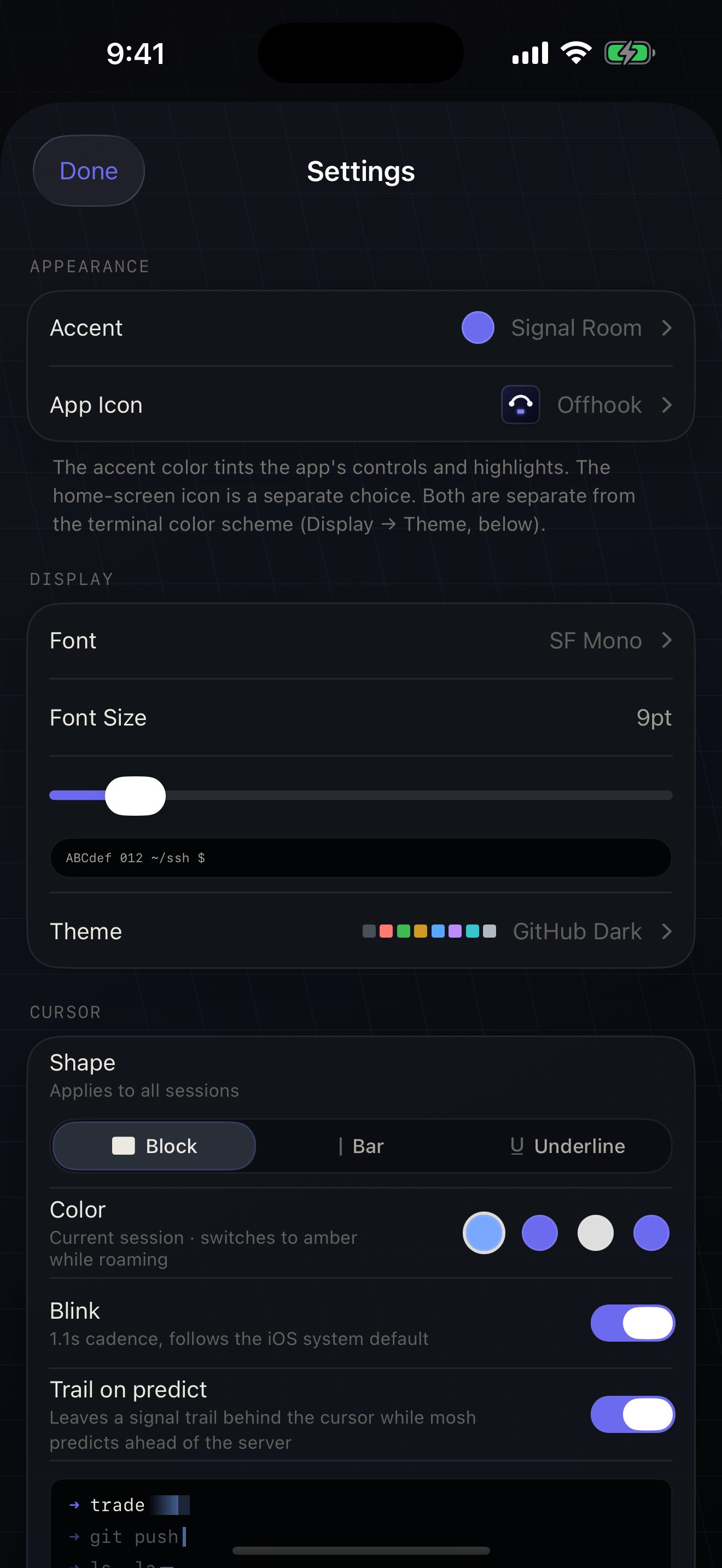
Settings → DISPLAY → Font Size is a slider from 8 to 18 points in steps of 1, default 9. A live sample line, ABCdef 012 ~/ssh $, sits under it. Pinch to zoom in the terminal and the size you land on is written back into this setting, so the next redraw does not snap it away.
Settings → APPEARANCE holds Accent and App Icon as separate rows. They used to be one list where picking a colour also swapped the icon. Splitting them was not cosmetic — it is a consequence of what iOS allows.
Accent
Section titled “Accent”Four built-in accents ship: Signal Room (the default indigo), Teal Line, Terminal Green and Amber Console. A custom accent is a single colour — the pressed state and the two faint background washes are derived from it, and only the accent hex is stored, so a future refinement to the derivation also reaches accents you already saved.
- The editor previews your colour on a mock of the app’s own chrome — a CONNECT button, a MOSH pill, a selected row — with the fixed warning, success and error colours right beside it, so a clash is visible before you save.
- Status colours never move. Warning, success and error stay fixed so they are never mistaken for the accent.
- An accent applies when you leave the gallery, not when you tap it. The row ticks immediately and commits on dismiss. Applying it on the spot rebuilds the whole view tree, which took this pushed screen down with it and bounced you back to Settings — comparing two accents meant re-navigating each time.
App icon
Section titled “App icon”Nine icons, all Liquid Glass with Dark and Tinted appearances: Moshpit, Pit, Island, :wq, Prefix, Localhost, Prompt, Cursor and Hail. Most of them are not the app’s mark at all — the set is meant to be genuinely different artwork, not nine recolours. The picker renders the real bundled image rather than redrawing it, so what you see is what lands on your home screen.
Cursor
Section titled “Cursor”Settings → CURSOR: Block, Bar or Underline; a colour from teal, green, white or your accent; and Blink on a 1.1s cadence. Amber is not on the list — it is the automatic roaming colour.
“Trail on predict” is the same story as the Color swatch. The toggle is there, it is on by default, and it says it marks the characters mosh’s predictive echo is showing ahead of the server — but the only thing that draws it today is the little preview directly beneath it on the Settings screen. No terminal render path reads the setting, so the live cursor has no trail either way.
Your choice is re-asserted after every batch of output. Remote programs emit cursor-style controls freely — vim, zsh plugins and coding agents all do — so a one-shot apply would only survive until the next one, and the cursor would be right sometimes and wrong other times.
Do my shortcuts and themes sync between devices?
No. The shortcut layout, custom shortcuts, custom themes and custom accents are all stored on the device. There is no Moshpit account and no iCloud sync, so a second device starts from the defaults. Copy a theme as JSON and paste it across if you need it in two places.
Can I colour-code my custom keys?
Not today. The Color swatch in the Add Shortcut sheet is saved but no rendering path reads it — every chip on the bar is the same dark-grey pill.
Does the cursor trail work?
Not in the terminal. “Trail on predict” is stored and drawn in its own Settings preview, but nothing on the render path reads it, so the live cursor looks the same with the toggle on or off.
Does ⇅ ever send anything to the server?
Often. A mouse-grabbing program gets a wheel event in every session type. A plain shell pages locally over SSH — with or without tmux — and sends copy-mode keys only over mosh + tmux. herdr always sends a terminal.scroll message and the server pages, because its frames are absolute repaints and leave no local history to page through.
Can I remap a hardware keyboard?
No. Hardware keys are handled by the terminal engine and are not remappable, and there are no app-level ⌘ shortcuts. F12 and above do nothing. The Shortcuts editor covers the on-screen bar only.
Is there a light terminal theme?
No. All eight built-ins are dark. You can build a light one in the editor — nothing stops you setting a pale background — but none ships.
Why don't Fira Code's ligatures work?
They are disabled deliberately. One glyph per column is what makes a terminal grid line up; a ligature collapses two characters into one glyph and shifts everything after it one column left. This is a correctness decision, not an oversight.
Can I have more than 12 keys on the bar?
No — twelve is a hard cap. The way around it is SCOPE: bind a key to specific hosts, or to multiplexer sessions only, and it stops competing for a slot on the connections where you do not need it.