 moshpit
Make it look like your desktop.
Terminal themes
Section titled “Terminal themes”Eight built in, with a real preview of each — the gallery shows the actual palette rather than a name. Themes carry a full 16-colour set; where a theme leaves the bright variants unspecified, Moshpit derives them by lightening rather than guessing.
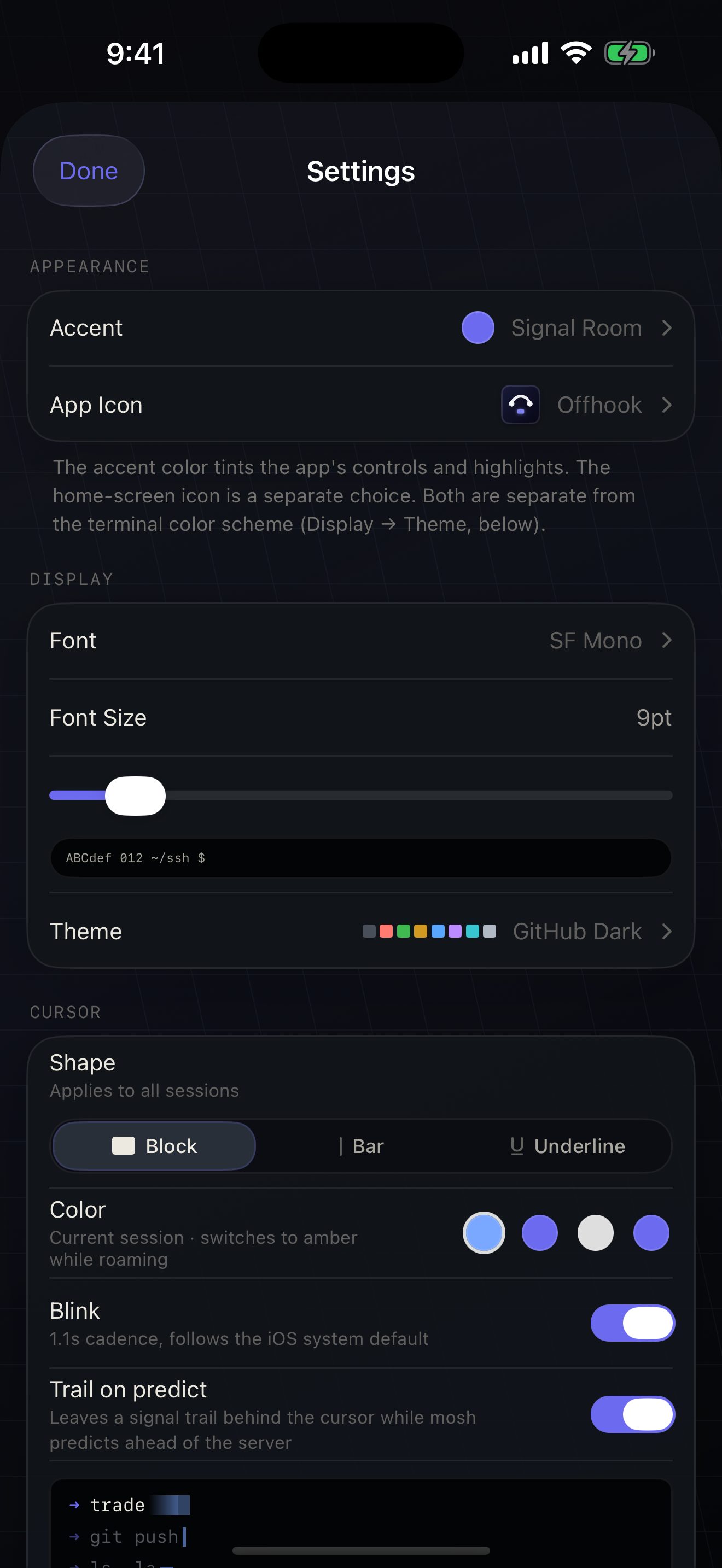
The editor makes your own: pick every colour, and export or import the result as JSON so a theme can move between devices (there is no account to sync it for you).
Seven monospace faces ship with the app — JetBrains Mono, Maple Mono, Fira Code, Source Code Pro, IBM Plex Mono, Hack and Anonymous Pro — plus three from iOS itself: SF Mono, Menlo and Courier. Size is a slider with a live sample, because 9pt on a phone is a different proposition from 9pt on a desktop.
CJK coverage in these faces is uneven; characters they lack fall back to the system font. See CJK and IME input.
Cursor
Section titled “Cursor”- Shape — block, bar or underline, applied to every session.
- Colour — including the amber it switches to while Mosh is roaming, so the cursor itself tells you the link moved.
- Blink — on a 1.1s cadence, following the iOS system default.
- Trail on predict — stored, and drawn in the Settings preview next to it, but nothing on the terminal’s render path reads it: Moshpit has no predictive echo (see Mosh), so the live cursor looks the same either way.
App icon and accent
Section titled “App icon and accent”Nine home-screen icons and a custom accent colour. These are separate choices on purpose: iOS can only switch to icons that were bundled at build time, so an icon could never follow an arbitrary accent — pretending otherwise would mean either forbidding custom colours or silently picking an approximate icon.
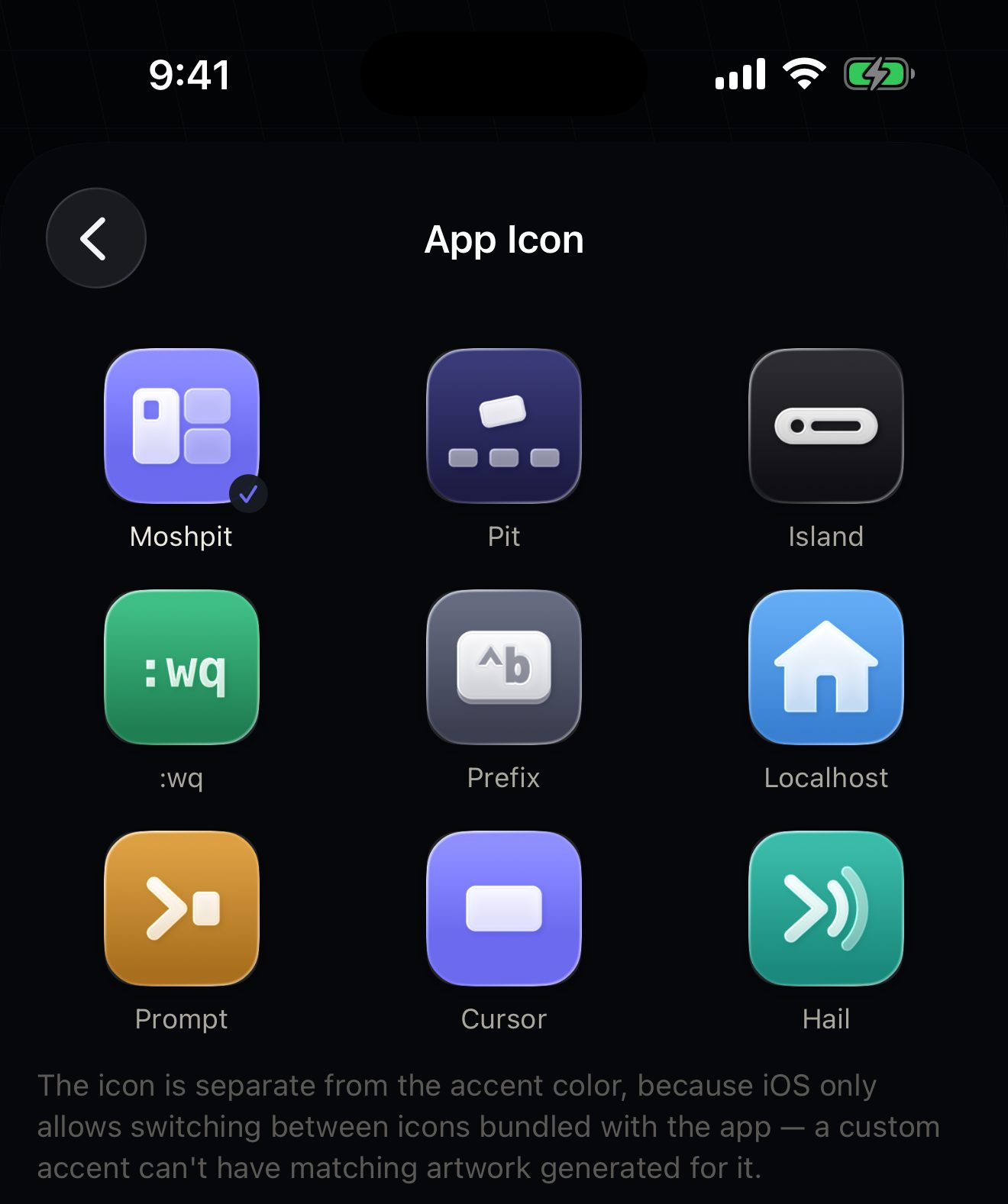
One thing the accent deliberately does not touch: the agent state colours. Amber means “needs you” and teal means “working” on every screen and on the lock screen, whatever accent you choose. State colours that move with taste stop being state colours.